Google Consent Mode v2
How OptinStack integrates with Google Tag Manager and Google Consent Mode v2.
OptinStack drives Google Consent Mode v2 automatically. On every consent state change, the runtime calls gtag('consent', ...) with the mapped signals and pushes OptinStack events to dataLayer for GTM triggers.
How it works
When the consent kernel initializes:
- OptinStack ensures
window.dataLayerexists (creates an empty array if missing). - OptinStack ensures
window.gtagexists (installs a minimal function that pushes todataLayerif missing). - The first Consent Mode call uses
gtag('consent', 'default', …)and includeswait_for_update: 500. - Later consent changes use
gtag('consent', 'update', …). - DataLayer events such as
optinstack_consent_updatedare pushed for use in GTM triggers.
You do not need to pre-install gtag for Consent Mode signals. You still need Google tags (or GTM) on the page for those tags to consume the signals.
Place the OptinStack two-tag install before GTM / gtag so default consent is set early. See Install.
Tracker blocking (scripts, iframes, cookies, storage) is separate from Consent Mode. Blocking uses your published
inventory and data-optinstack-categories. Consent Mode only updates Google's consent signals. See Basic vs Advanced
Google Consent Mode for when cookieless
pings may still fire.
Consent signal mapping
| GTM parameter | OptinStack category |
|---|---|
ad_personalization | marketing |
ad_storage | marketing |
ad_user_data | marketing |
analytics_storage | analytics |
functionality_storage | preferences |
personalization_storage | preferences |
security_storage | necessary |
Each parameter is set to 'granted' or 'denied' based on the corresponding OptinStack consent category, with the exceptions below.
Disabled categories
Project configuration can disable entire categories (for example, hide the marketing toggle in consent preferences). When a category is disabled in config, the SDK treats it as essential for enforcement purposes and sends granted for the mapped Google Consent Mode signals on that category. Disabled categories are not shown in the preferences UI and cannot be declined by visitors.
Preview and override modes
Dashboard preview or rule-override flows can force a temporary banner rule in the browser. When an override forces an opt-in rule for preview, Consent Mode updates may be skipped so preview behavior does not fight production Google tags. Production traffic uses the published regional policy and always drives Consent Mode as described above.
OptinStack GTM guides
For full setup walkthroughs, see:
- Integrate OptinStack with Google Tag Manager (install, Consent Mode in GTM, and uninstall)
- Set up Google Consent Mode v2
- Basic vs Advanced Google Consent Mode
- OptinStack and Google Tag Manager integration
Example
When a user accepts all categories, the SDK sends:
gtag('consent', 'update', {
  ad_personalization: 'granted',
  ad_storage: 'granted',
  ad_user_data: 'granted',
  analytics_storage: 'granted',
  functionality_storage: 'granted',
  personalization_storage: 'granted',
  security_storage: 'granted',
});
When a user rejects all optional categories:
gtag('consent', 'update', {
  ad_personalization: 'denied',
  ad_storage: 'denied',
  ad_user_data: 'denied',
  analytics_storage: 'denied',
  functionality_storage: 'denied',
  personalization_storage: 'denied',
  security_storage: 'granted', // necessary is always granted
});
DataLayer events
The SDK also pushes events to the dataLayer array for use in GTM triggers:
| DataLayer event | When |
|---|---|
optinstack_gpc_signal_detected | On init, if Global Privacy Control is active |
optinstack_consent_updated | Every time consent state changes |
optinstack_necessary_accepted | First time necessary is granted (fires once) |
optinstack_analytics_accepted | First time analytics is granted (fires once) |
optinstack_marketing_accepted | First time marketing is granted (fires once) |
optinstack_preferences_accepted | First time preferences is granted (fires once) |
optinstack_unclassified_accepted | First time all four consent categories are granted (fires once) |
Using dataLayer events in GTM
Create a custom trigger in GTM based on these events:
- Go to Triggers → New
- Select Custom Event
- Set the event name to
optinstack_analytics_accepted - Use this trigger on tags that should only fire after the user grants analytics consent
The *_accepted events fire only once per page load. They will not re-fire if consent is toggled off and on again
within the same load. If a category is later denied, the corresponding accepted marker is cleared so a new grant can
fire again later in the session.
Webflow Insights
If your Webflow project uses Webflow Insights and follows an opt-in GDPR policy rule, configure Webflow Insights so that tracking is disabled until the user has granted consent.
When the integration is installed and configured correctly, this helps prevent Webflow Insights from collecting analytics before the visitor opts in. Verify the behavior on the published site after every integration or tag change.
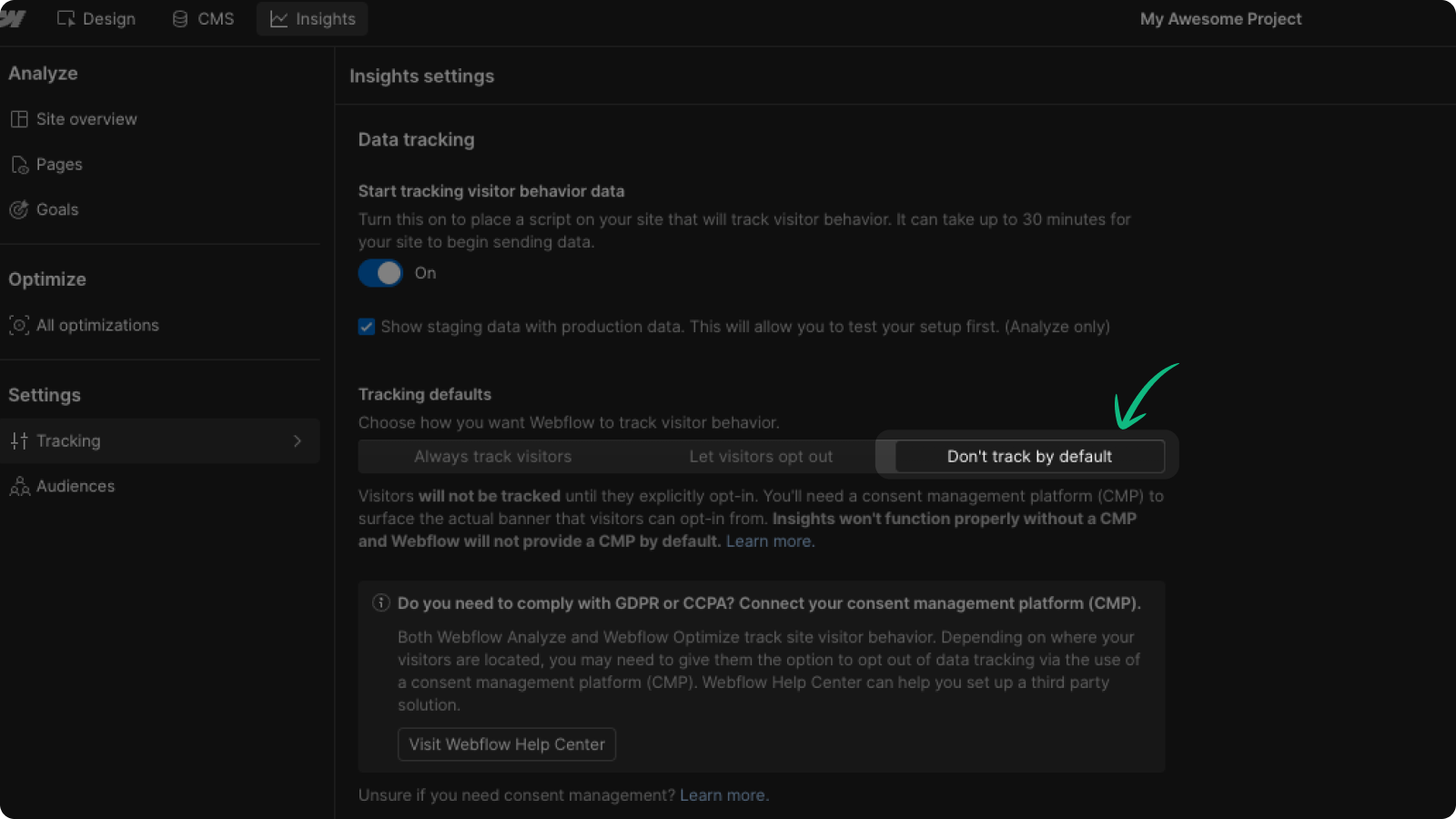 Inside Webflow designer, navigate to Insights → Tracking and set Tracking defaults to Don't track by default.
The runtime also syncs analytics consent with Webflow's user-tracking APIs (wf.allowUserTracking / wf.denyUserTracking) when those APIs are present.
Was this helpful?